📑 Table of Contents
If you own an ASUS laptop, you have probably had the same frustrating experience I have. You want to do one simple thing: limit your battery charge to 80% when you are working at your desk, and let it charge to 100% when you are about to leave the house. That is it. That is the entire feature request.
And yet, the "official" way to do this involves installing MyASUS, which comes bundled with an entire ecosystem of background services, telemetry, system control interfaces, and update managers that collectively consume hundreds of megabytes of RAM and scatter registry entries across your system like confetti.
I have been living with this annoyance for a while now. And like most developers, when a piece of software annoys me enough, I eventually just build my own.
So I built Electrolite.
The Problem with Existing Solutions
Let me explain why this tool exists, because the answer is not "I was bored on a Saturday." The answer is that existing battery charge management on ASUS laptops is absurdly overengineered for what it does.
Here is what you currently need to control your charge limit on most ASUS laptops:
- MyASUS App: A full UWP application with a dashboard, system diagnostics, customer support integration, software updates, and somewhere buried in the settings, a battery health charging toggle.
- ASUS System Control Interface: A background service that maintains communication between MyASUS and your hardware. It runs at startup, it polls your system, and it periodically resets your battery charge limit to whatever it thinks the value should be.
- Armoury Crate (on ROG models): Another full application with its own set of background services, primarily for performance profiles but also touching battery settings.
All of this, just to write a single integer to an ACPI register.
I am not exaggerating. The entire operation of setting a battery charge limit on an ASUS laptop is: send the number 80 or 100 to a specific device ID on the Embedded Controller via an ACPI driver call. That is it. One call. One number. Done.
The fact that this requires a 200MB+ software suite with seventeen background processes is, to put it diplomatically, excessive.
What Is Electrolite?
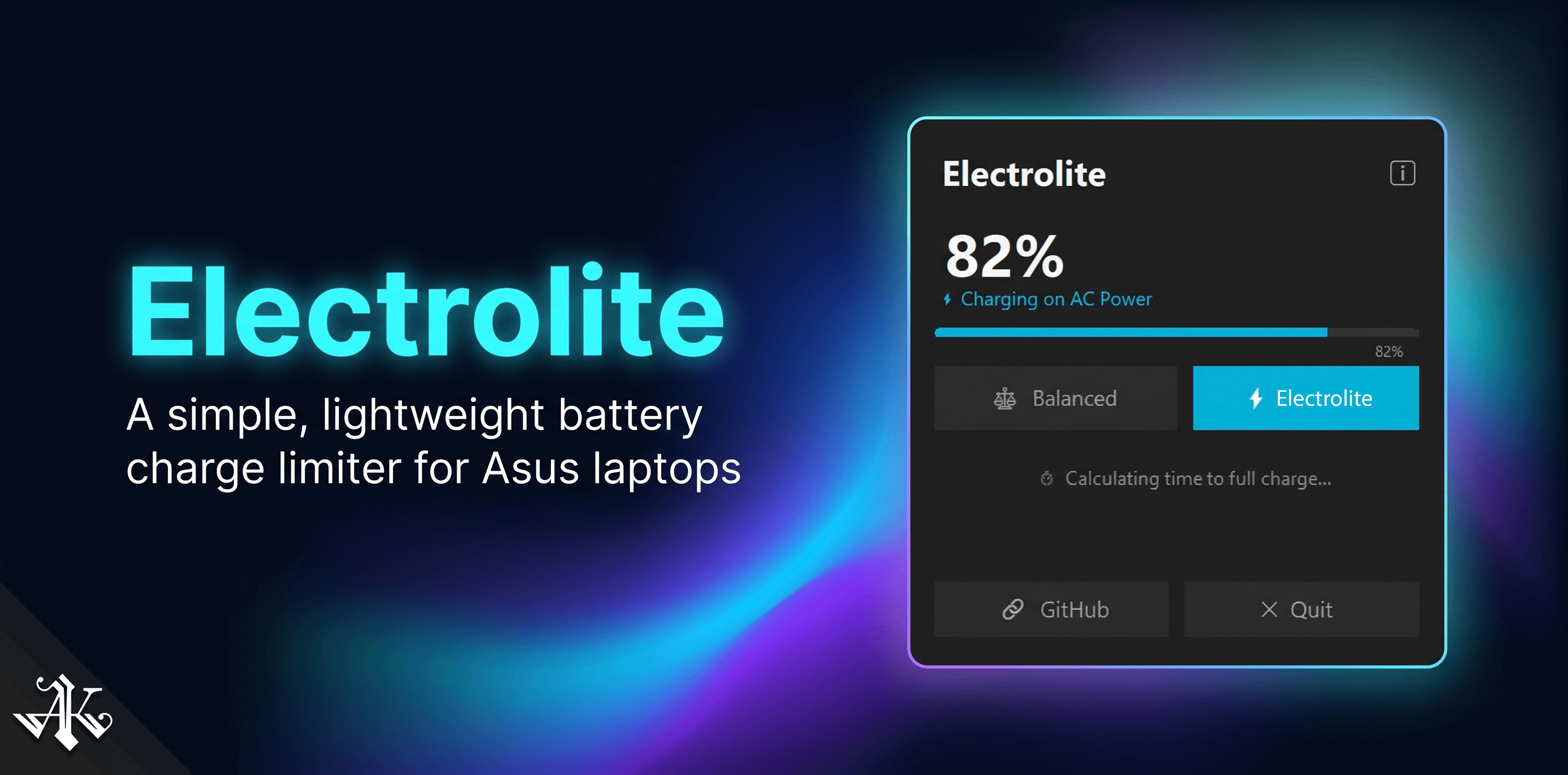
Electrolite is a free, open-source, single-purpose Windows application that does exactly one thing well: it lets you toggle your ASUS laptop's battery charge limit between 80% and 100%.
Here is what it looks like in practice:
- 🔋 Balanced Mode (80%) - Caps the charge at 80% to preserve long-term battery health during desk use.
- ⚡ Electrolite Mode (100%) - Removes the cap so you can charge to full capacity before leaving home.
- 🪶 Zero bloat - Runs silently in the system tray. No taskbar presence. No splash screen. No settings wizard.
- 📊 Real-time telemetry - Shows your current charge level, power source status, and estimated time to full, updated live.
- 🎹 Global hotkey - Press
Ctrl + Shift + Bfrom anywhere to cycle between modes instantly. - 🎨 Modern aesthetics - A sleek, dark-mode glassmorphic flyout UI that slides up from the taskbar with smooth animation.
The entire application is a single .exe file that weighs roughly 1.2 MB. It is built in C# targeting .NET 8 with Windows Forms, and it is licensed under GPL v3.
The Two Modes
Electrolite is designed around a single, simple daily workflow: you are either at your desk or you are about to leave.
⚖️ Balanced Mode (80% Limit)
This is your default, everyday mode. When your laptop is plugged in at your desk for extended periods, keeping the battery at 80% significantly reduces degradation caused by holding a high charge at constant voltage. Lithium-ion batteries age faster when they sit at 100% for hours. Balanced mode prevents that.
When active, the system tray shows a gray icon and the flyout dashboard displays "Holding at 80% - Charge Limit Active".
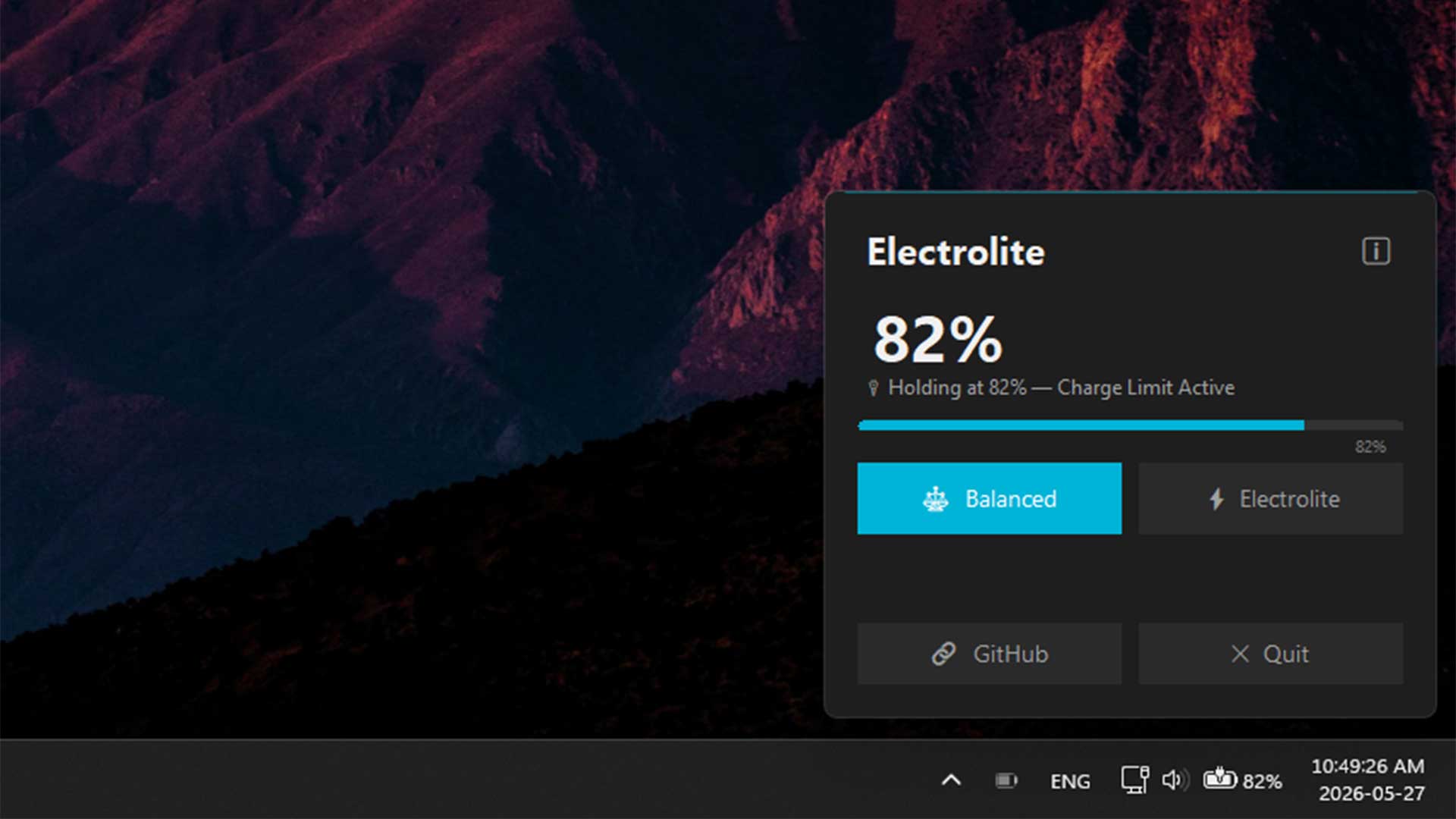
Note: The screenshot shows 82% because the battery was previously in Electrolite mode and charged past the 80% threshold. Once you switch back to Balanced, the laptop does not discharge down to 80% immediately. It simply stops charging and waits for the battery to naturally drain to 80% through normal use before it starts charging again.
⚡ Electrolite Mode (100% Limit)
This is your "I am leaving the house in 30 minutes" mode. One click (or one hotkey press) removes the charge cap entirely, allowing your battery to charge to its full capacity as quickly as possible. Once you are topped up and out the door, you switch back to Balanced when you get home.
When active, the tray icon changes to a teal lightning bolt and the dashboard shows the estimated time remaining until full capacity.
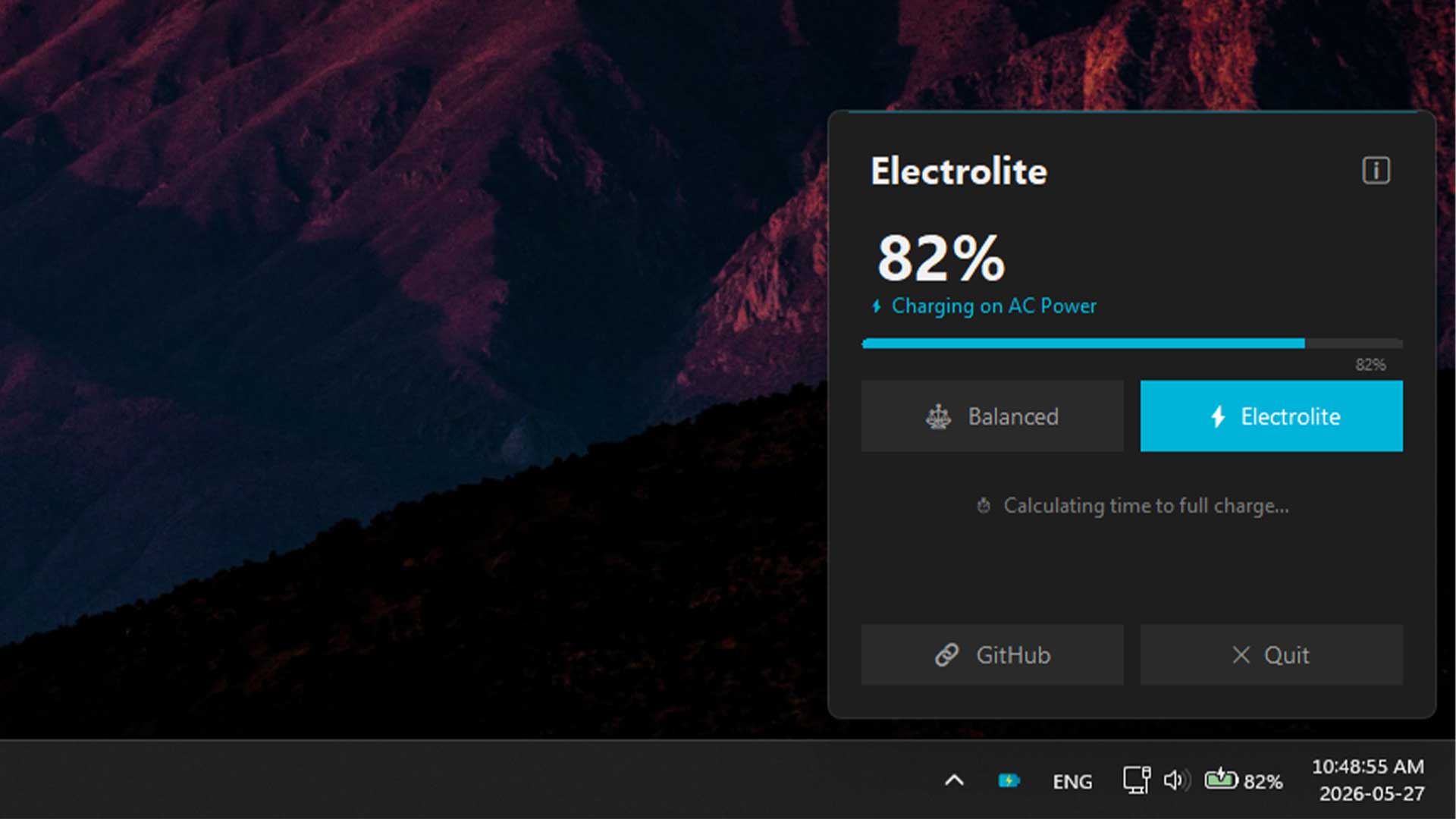
That is the entire user experience. Two modes. One toggle. No twelve-tab settings panel. No "advanced configuration." No premium upgrade.
How It Works Under the Hood
This is the part that I think will interest fellow developers. Electrolite bypasses the entire ASUS software stack and communicates directly with the laptop's hardware through multiple fallback layers:
1. Direct ACPI Driver Calls (Primary)
The primary method uses DeviceIoControl to write directly to the ASUS ACPI device driver at \\.\ATKACPI. The call sends the charge threshold value (80 or 100) via control code 0x0022240C using the DEVS method with device ID 0x00120057.
This is the fastest and most reliable path. It is a native P/Invoke call to the Windows kernel that hits the ASUS Embedded Controller directly, the same driver that ASUS's own tools use internally.
2. WMI ACPI Fallback (Secondary)
If the direct driver path is not accessible (which can happen on some ASUS hardware generations where the ATKACPI device name differs), Electrolite falls back to calling the WMI method DEVS on the AsusAtkWmi_WMNB class. This is the same WMI interface that MyASUS uses, just without the 200MB of baggage that comes with it.
3. Registry Syncing (Tertiary)
After setting the charge limit through the hardware layer, Electrolite also syncs the threshold value to the Windows Registry. This keeps the official ASUS services and the Windows settings interface aligned with Electrolite's state. The app auto-detects the correct registry layout across different ASUS hardware generations, supporting both newer ROG models (under ASUS Keyboard Hotkeys\ChargingRate) and older ASUS models (under ASUS_Optimize_Setting\Battery_HealthCharging).
The multi-layer fallback approach means Electrolite works even if one path is blocked. If the direct driver works, great. If not, WMI takes over. And the registry sync ensures that if you open MyASUS or ASUS System Control Interface later, it reflects the correct charge limit without confusion.
Real-Time Battery Telemetry
The flyout dashboard is not just a toggle switch. It also displays real-time battery information pulled from two sources:
SystemInformation.PowerStatus- Provides instant charge percentage, power source status (AC or battery), and charging state. This updates immediately when you plug in or unplug your laptop, thanks to a listener onSystemEvents.PowerModeChanged.Win32_Battery(WMI) - Supplies supplementary telemetry including estimated time to full charge and more granular battery status codes (charging, holding at limit, fully charged).
The combination of kernel-level power events and WMI polling (every 5 seconds) means the dashboard updates within a second of any power state change. No manual refresh. No stale data. You plug in the charger, the UI reacts instantly.
Download and Installation
Getting Electrolite running on your ASUS laptop takes about 30 seconds:
- Download the binary: Head to the Releases page on GitHub and download the latest
Electrolite_lite.zip. - Extract: Unzip the archive to a folder of your choice (e.g.,
C:\Program Files\Electrolite\orC:\Tools\Electrolite\). - Run as Administrator: Double-click
Electrolite_lite.exe. The app manifest is pre-configured to automatically request UAC elevation, since it needs Administrator privileges to write commands to the ASUS ACPI driver and sync toHKLMin the registry. - Check the system tray: Electrolite starts headless, no window, no taskbar icon. Look for the battery silhouette with a teal lightning bolt in your system tray. Left-click to toggle the flyout dashboard, or right-click for the context menu.
That is it. No installer. No wizard. No "creating your account" step. Just extract and run.
Running at Windows Startup
Since Electrolite requires Administrator privileges, the standard "drop a shortcut in your Startup folder" approach will either trigger a UAC prompt every boot or get blocked entirely. The recommended approach is to use Windows Task Scheduler, which can bypass the UAC prompt:
- Press
Win + R, typetaskschd.mscand hit Enter. - Click Create Basic Task... in the Actions panel.
- Name it
Electroliteand click Next. - Set the trigger to When I log on and click Next.
- Set the action to Start a program, browse to your
Electrolite_lite.exe, and click Finish. - Find the
Electrolitetask in the Task Scheduler Library, right-click it, and select Properties. - In the General tab, check Run with highest privileges.
- In the Settings tab, make sure Allow task to be run on demand is checked, and Stop the task if it runs longer than is unchecked.
Done. Electrolite will now start silently every time you log in, with full privileges, no UAC popup.
Building from Source
If you want to build Electrolite yourself (or contribute to the project), the process is straightforward. You need the .NET 8.0 SDK installed.
Clone the repository and run the following publish command from the root:
dotnet publish app/Electrolite.csproj -c Release -r win-x64 --self-contained false -p:PublishSingleFile=true
Here is what each parameter does:
-c Release- Compiles with release optimizations.-r win-x64- Targets 64-bit Windows.--self-contained false- Depends on the system's .NET 8 Desktop Runtime, keeping the binary extremely light at around 1.2 MB. If you want a fully standalone executable with no runtime dependency, change this to--self-contained true(produces a ~50 MB binary).-p:PublishSingleFile=true- Packages everything into a single.exefile.
The compiled binary will be at: app/bin/Release/net8.0-windows/win-x64/publish/Electrolite.exe
Troubleshooting
Since Electrolite talks directly to hardware, there are a couple of edge cases worth knowing about:
The charge limit is not holding (reverts to 100%)
If you set Balanced Mode but your laptop still charges past 80%, another ASUS service is likely overwriting the charge limit in the background. The most common culprits are:
- MyASUS App: Open MyASUS, navigate to Customization → Battery Health Charging, and either disable it or set it to match your Electrolite setting.
- ASUS System Control Interface / Armoury Crate Services: These background helper processes can periodically poll the BIOS and reset the limits. Disable them or ensure they are not actively managing the charge limit at the same time.
Electrolite syncs its values to the registry specifically to minimize these conflicts, but if an ASUS service runs after Electrolite and overwrites the registry value, it will take precedence.
Global hotkey not working
The default hotkey is Ctrl + Shift + B. If pressing it does nothing, another application on your system (such as a browser or development environment) has likely already registered that key combination globally. In that case, use the system tray icon's right-click context menu to switch modes instead.
Contributing and Device Testing
This is where I really need the community's help.
Electrolite was developed and tested on an ASUS Zephyrus G16 (2025). It is designed to work across a wide range of ASUS laptops, but ASUS has a lot of models, and each generation can have slight differences in ACPI device names, WMI class interfaces, and registry layouts.
If you own any ASUS laptop, I would genuinely appreciate it if you could:
- Test Electrolite on your machine and report whether it works correctly.
- Open a GitHub Issue in the Issues tab with your laptop model and results.
- Submit a pull request if you find a fix or improvement for your specific hardware variant.
The project also welcomes all kinds of contributions beyond device testing: bug fixes, performance optimizations, documentation improvements, and feature suggestions. The repository includes pull request templates and issue templates to make contributing as smooth as possible.
You can also reach out directly via [email protected] if you prefer email over GitHub issues.
License
Electrolite is distributed under the GNU General Public License Version 3 (GPL v3). This means you can use it, modify it, and distribute it freely, as long as derivative works remain under the same license. The full license text is available in the LICENSE file in the repository.
Final Thoughts
Electrolite exists because I believe a one-integer hardware operation should not require a 200MB software suite. It is the kind of utility I wish had existed when I first bought my ASUS laptop, so I built it and open-sourced it for everyone who feels the same way.
The project is still young. There will be bugs. There will be ASUS models I have not tested against. There will be edge cases I have not thought of. But that is the beauty of open source: you do not have to wait for a corporation to prioritize your bug report. You can fix it yourself, or someone in the community will.
If you are an ASUS laptop owner and you are tired of the bloatware tax, give Electrolite a try. And if it works on your machine, open an issue and let me know. If it doesn't, open an issue and let me know that too.
Either way, your feedback makes the project better for everyone.
⭐ Star it on GitHub if you find it useful. And welcome to the Electrolite community.
Comments